
What is a prediction market?
Yes or No questions on real events — you trade against other users, not the house.
Sign up on YeNo
Free account in seconds — embedded wallet included.
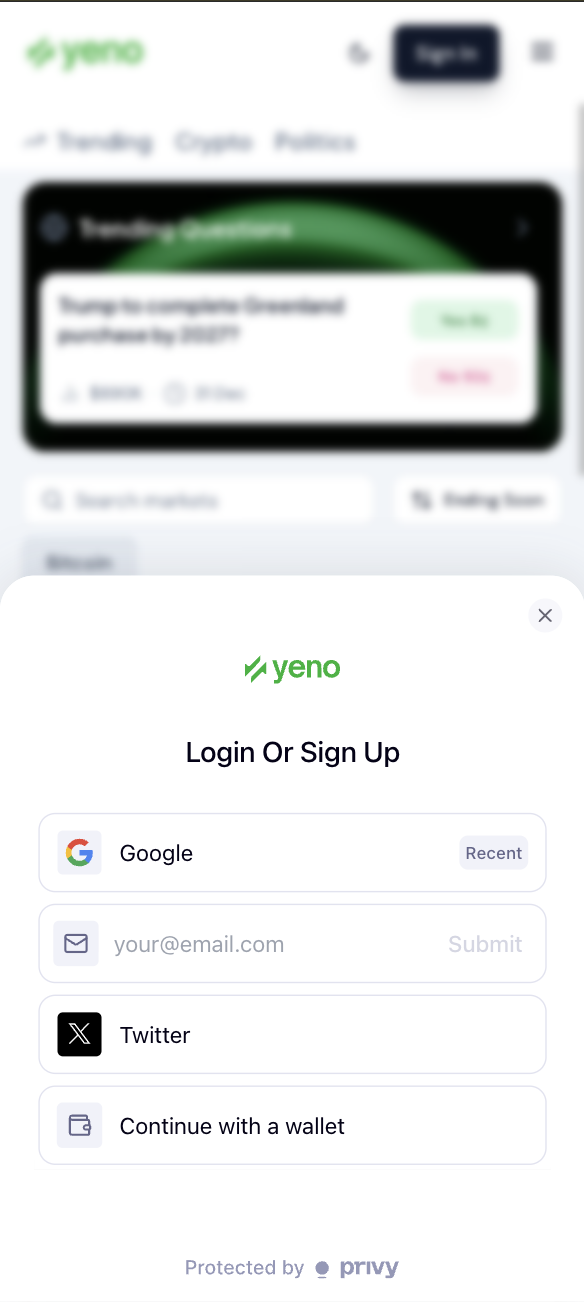
Sign up — login or create account
- Open Sign InTap the button in the header, or try to place a trade — the login modal appears automatically.
- Pick a methodGoogle, email, X (Twitter), Phantom, MetaMask, Coinbase Wallet, Rabby, or WalletConnect.
- Start browsingExplore markets immediately. Add USDC when you're ready (Deposit).
Home feed
Find markets — tap any card to trade.
- Filter by categoryTrending, FIFA, Crypto, Football, and more. Markets with a LIVE badge are in progress right now.
- Read the cardYes and No prices show current odds. Payout previews (e.g. $100 → $179) help you gauge upside before you tap in.
- Use the bottom barHome for discovery, Live for in-play events, Up/Down for short-term markets, Portfolio for your positions.
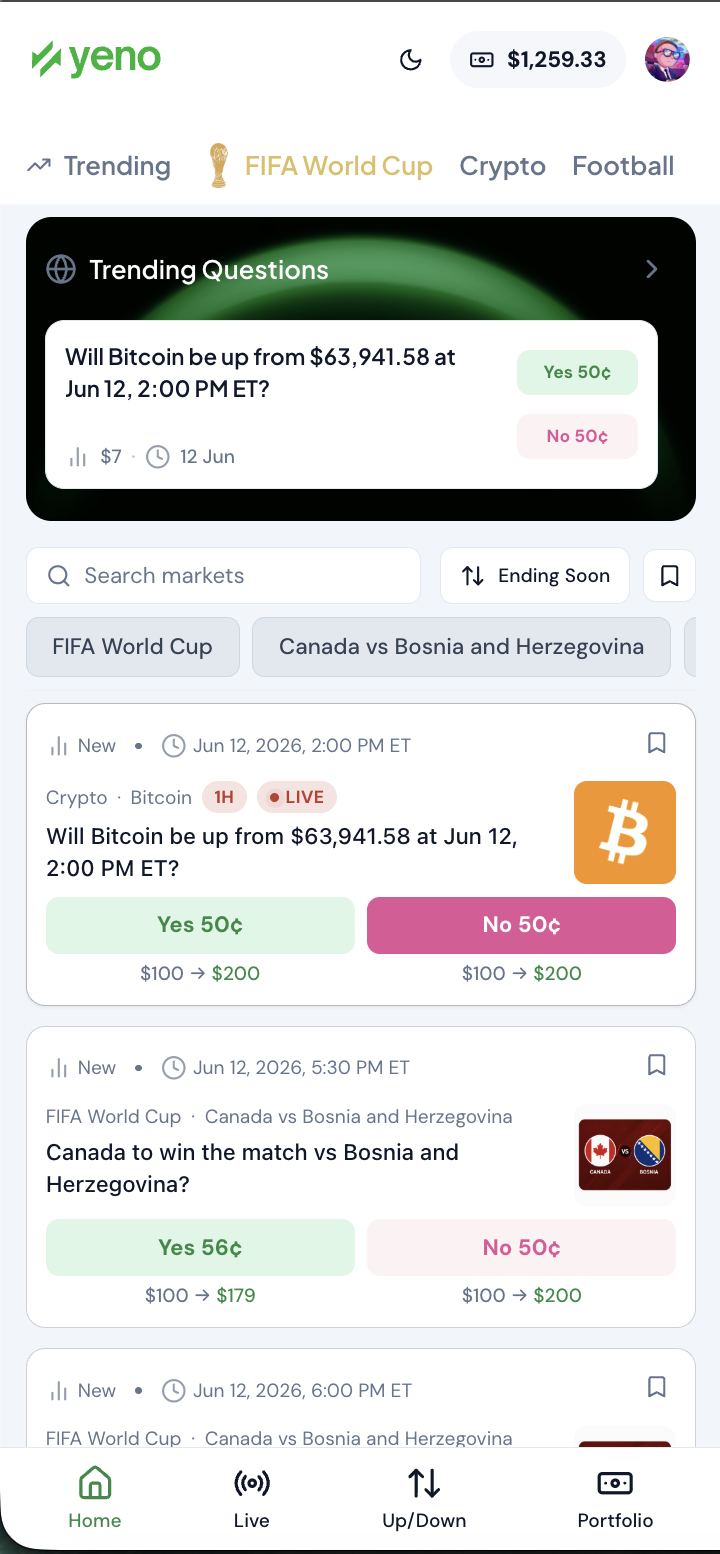
Home — categories, trending banner, Yes/No prices
Deposit
Fund your account — $5 minimum.
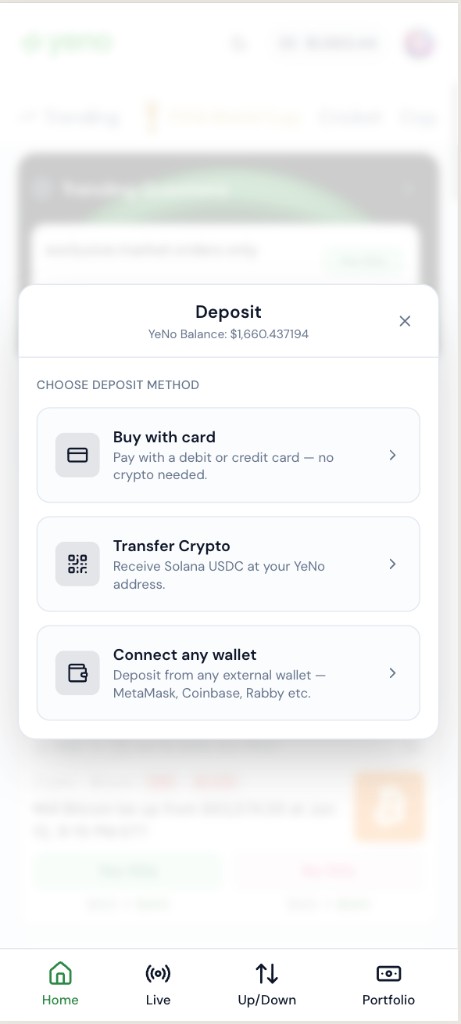
Deposit — three ways to add USDC
- Open depositTap your balance in the header, or go to Profile → Deposit.
- Choose a methodCard — buy USDC with fiat. Crypto transfer — scan QR or copy address. Connect wallet — send from Phantom, MetaMask, etc.
- Start tradingUSDC lands in your YeNo wallet. Cross-chain deposits from Base, Ethereum, Polygon, Arbitrum, and BSC are also supported.
Placing orders
Limit sets your price — Market fills instantly.
Every market page has a trade panel on the right (bottom on mobile). Toggle Limit or Market at the top, pick Yes or No, then submit. Try the demo below — it mirrors the real app.
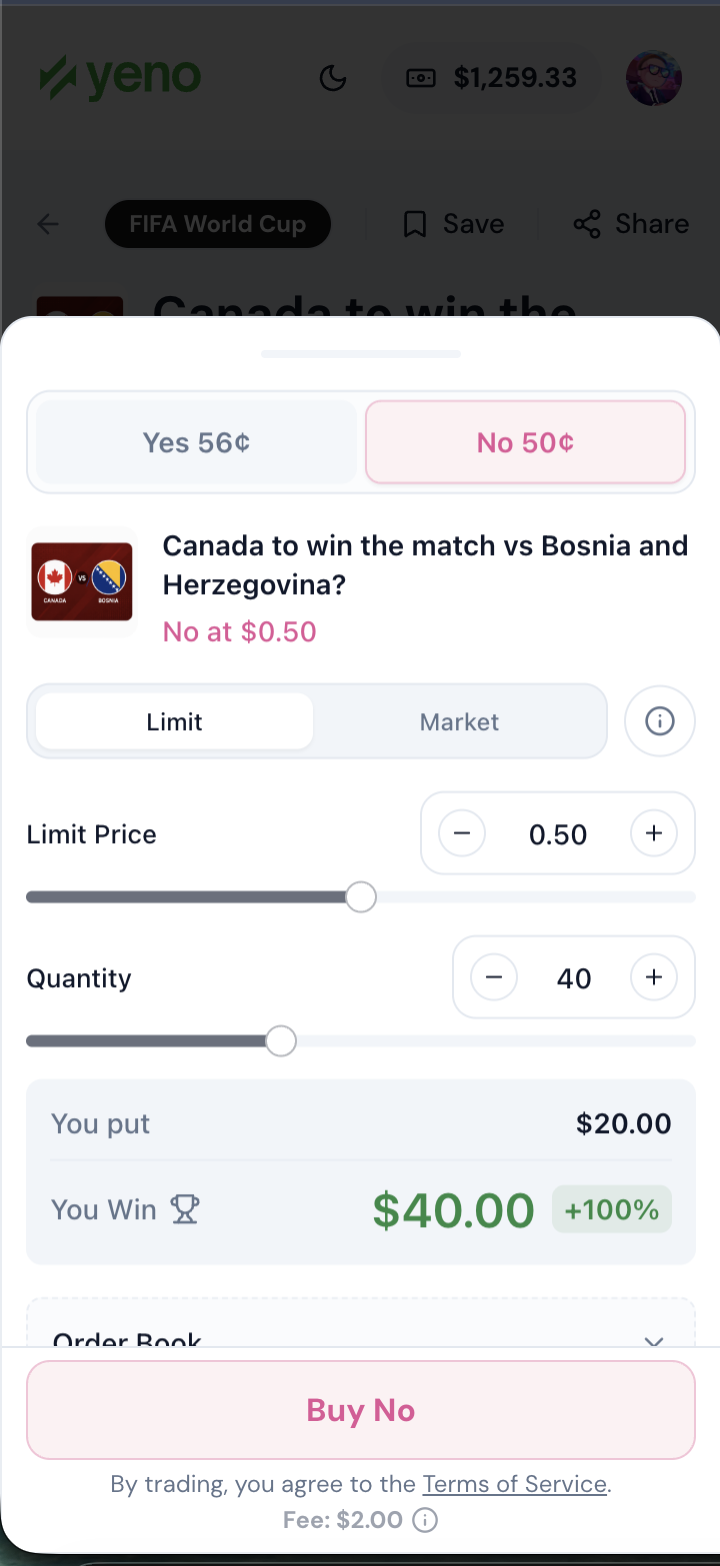
Limit — price and quantity
| Limit | Market | |
|---|---|---|
| Input | Price + shares | Dollar amount |
| Speed | When matched | Seconds |
| Cancel | Yes, until filled | No |
| Best for | Specific entry price | Getting in now |
First trade
Open a market, pick a side, submit — you’re in.
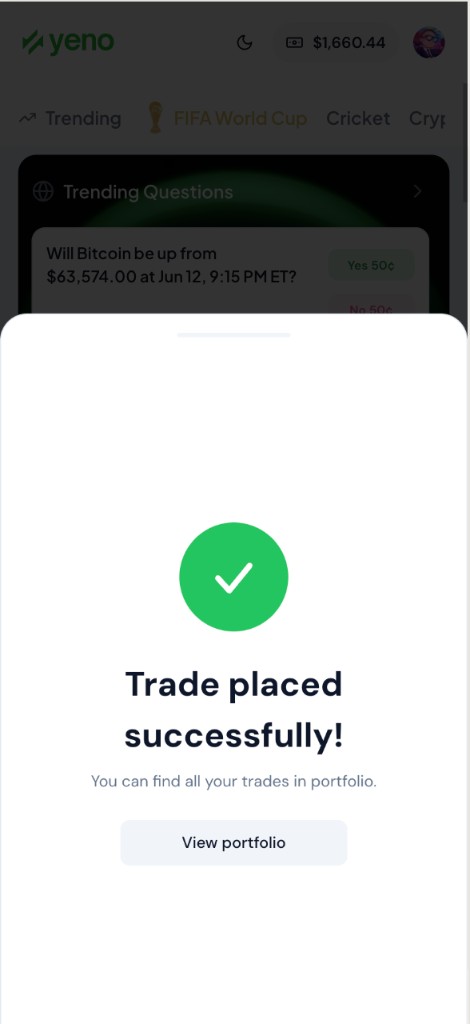
Success — trade placed, tap View portfolio
- Pick a marketFrom the home feed, Live tab, or search. Read the question and check Yes/No prices on the card.
- Choose side + sizeToggle Yes or No, then Limit (price + shares) or Market (dollar amount). Min $4, max $50 per order.
- Submit & confirmSee Trade placed successfully! — matched shares go to Portfolio → Active positions; resting limits to Open positions.
Order book
See depth and settlement rules on each market page.
- Bids & asksGreen bids (buyers) and pink asks (sellers) with size bars showing how much is resting at each price level.
- Over / Under toggleOn sports and totals markets, switch between outcome views without leaving the page.
- Quick trade buttonsBuy Yes or No at the best available price from the bottom of the book — same as a small market order.
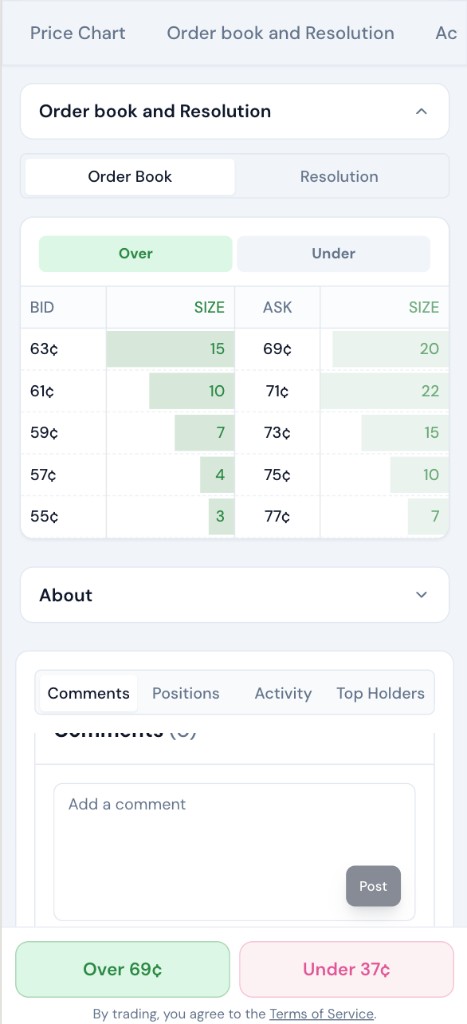
Order book — bids, asks, and Resolution tab
Positions (inside a market)
This market only — separate from Portfolio.
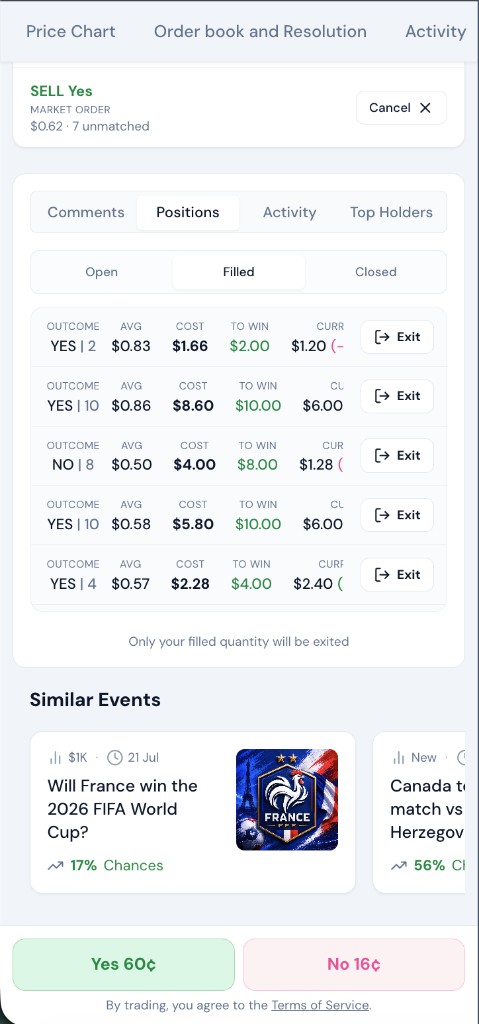
Filled — matched shares, live P&L, and Exit
- OpenResting limit orders for this market only — cancel from here without opening Portfolio.
- FilledMatched shares with live P&L. Tap Exit to sell before resolution.
- ClosedExited or settled legs — final result and P&L for this market.
Portfolio
Everything you hold across all markets.
- Overview headerTotal portfolio value, all-time P&L, available USDC balance, and any promo credit.
- Open positionsResting limit orders — USDC locked until fill or cancel.
- Active positionsMatched shares still open — live value, % move since entry, and Exit on each row.
- Closed positionsFinal P&L after exit or settlement, plus Activity for the full log.
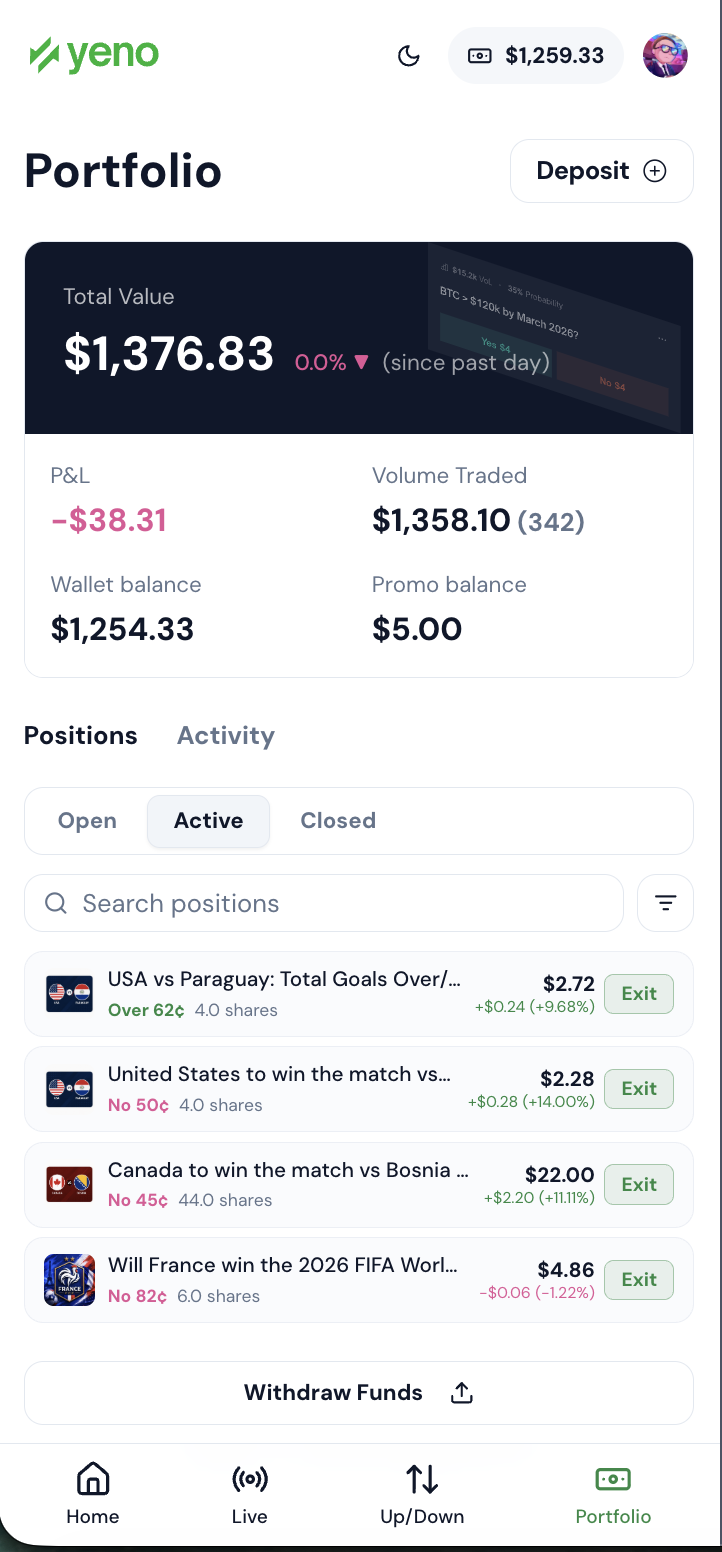
Portfolio — overview and position tabs
Open positions
Resting limits — USDC locked until fill or cancel.
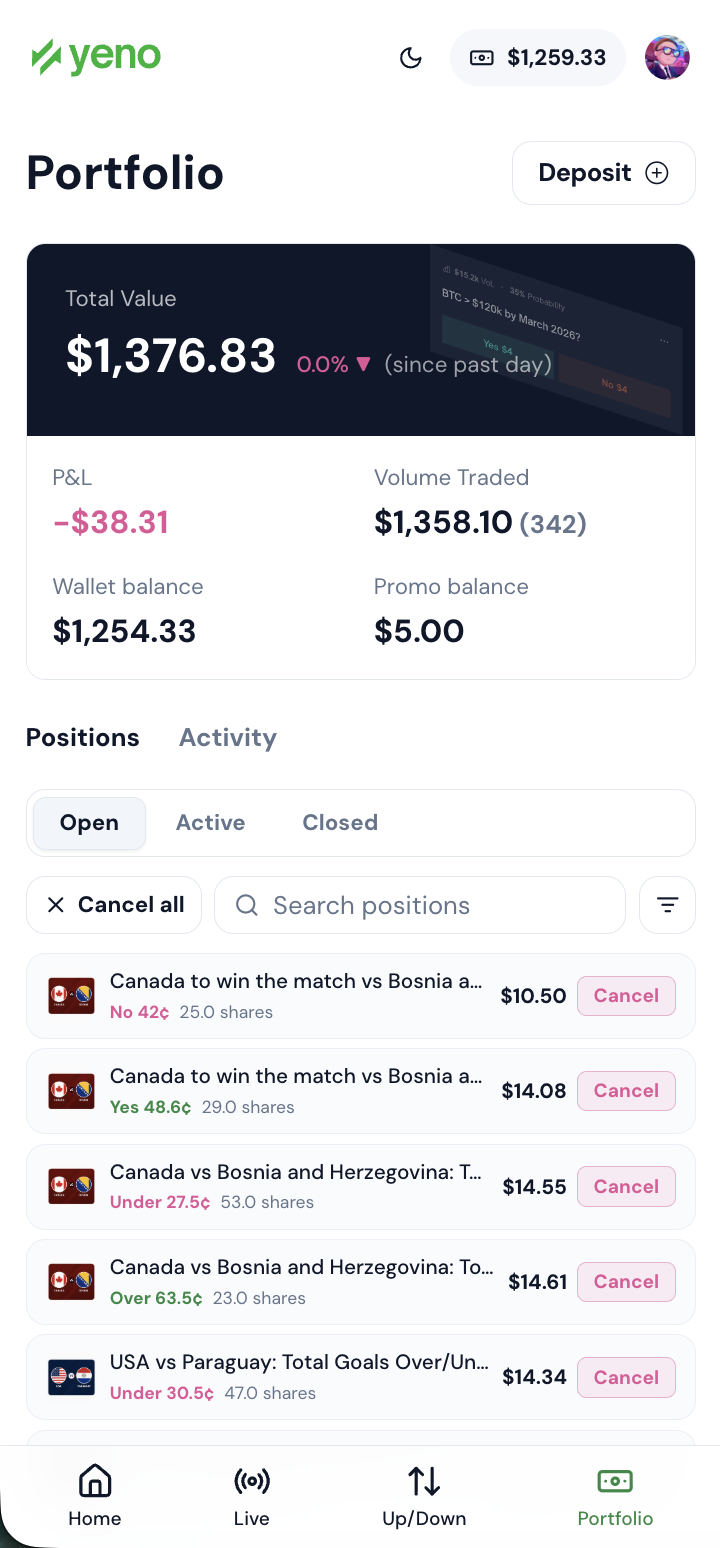
Open positions — cancel one row or Cancel all
- Waiting to fillPrice, side, and size shown per row. Order stays until matched or cancelled.
- Cancel one or allTap cancel on a single row, or use Cancel all at the top to free locked USDC at once.
- Partial fillsIf part of your order matches, the filled portion moves to Active positions; the rest stays here.
Active positions
Matched shares still open — green Yes, pink No.
- Live P&LGreen when you're up, red when down — based on the current best price in the book.
- Exit anytimeSell before resolution to lock profit or cut losses. You don't have to wait for settlement.
- Tap a rowOpens the market page so you can trade, view the book, or add to your position.
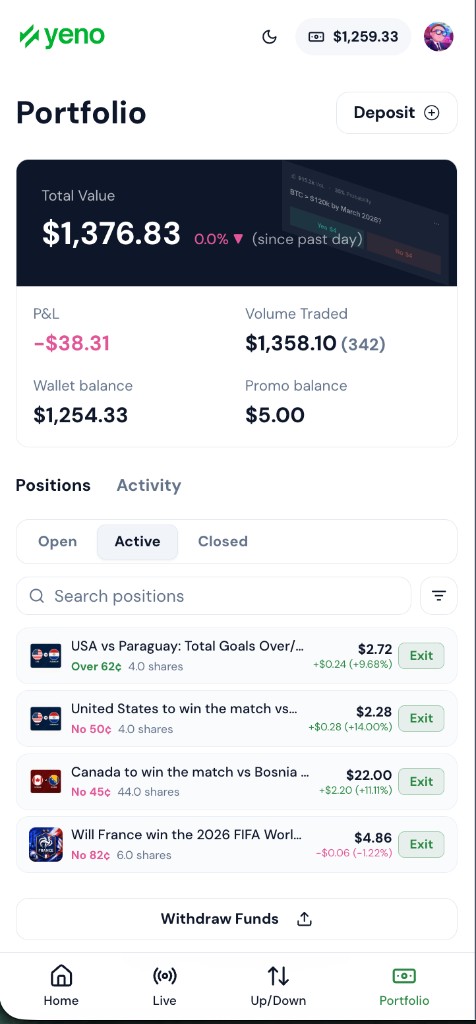
Active positions — live P&L and Exit on each row
Closed positions
Final P&L after exit or settlement.
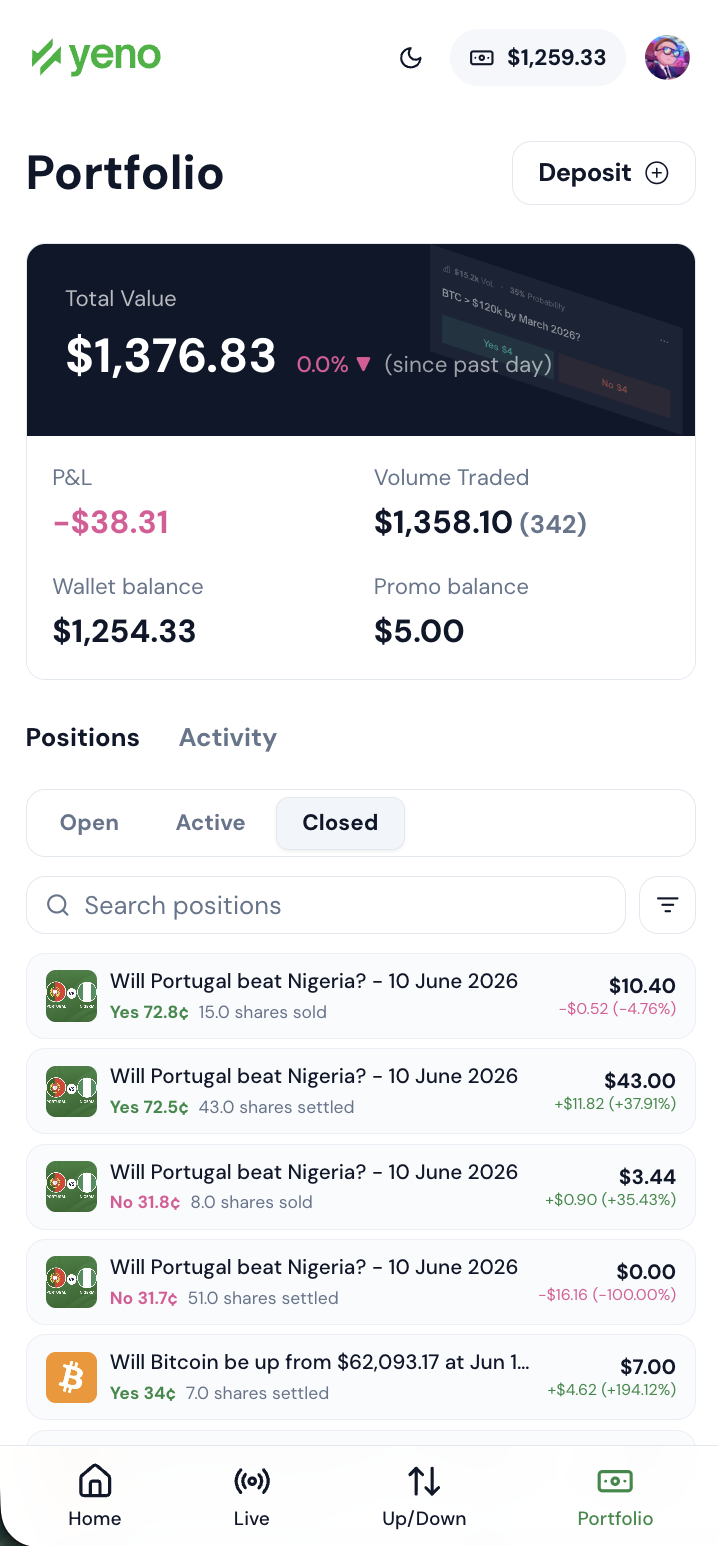
Closed positions — settled and exited trades
- WonWinning shares pay out at full value — USDC lands in your wallet automatically.
- LostLosing shares settle at zero — nothing more to pay.
- Early exitSold before resolution? Final P&L reflects the price you exited at.
Activity
Full history — deposits, trades, settlements.
- Full timelineDeposits, buys, sells, cancels, and resolution payouts with timestamps.
- Grouped by marketEach market shows an event count — tap to expand and see individual transactions.
- Reconcile P&LUse alongside Closed positions to verify how a position played out from entry to exit.
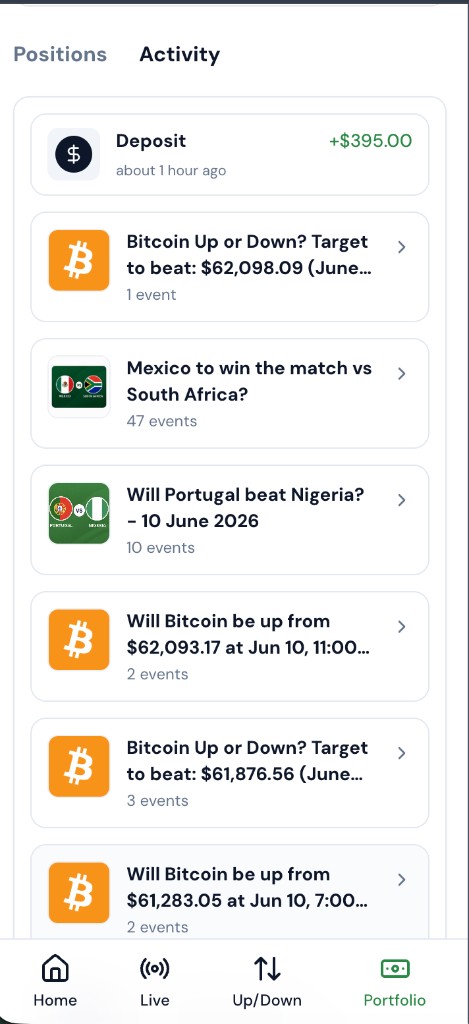
Activity — grouped by market, tap to expand
Resolution
Markets settle from official sources — not discretionary.
- WinWinning shares pay out in USDC when the market resolves — credited to your wallet automatically.
- LoseLosing shares are worth nothing at settlement.
- Cancel / voidIf a market is cancelled, you get a full refund of your stake. You can also sell anytime before close to avoid waiting.